How to Register
BEFORE REGISTERING
Check Placement Test Results
- MyDawson portal/Placement Test Results click for your English or French placement level.
Progression Chart (Graduation Profile)
- My Omnivox Services/Progression Chart
- You must take the courses that say “Proposed” in Fall 2026 on your progression chart (graduation profile).
To find your assigned courses
- MyDawson/My Omnivox Services/Course Schedule see the courses that have been assigned to you by the College
- See Helpful Registration Videos
- Check your Registration Time
- Verify your program’s registration date (see When to Start Registration or) and check your personal Omnivox appointment time, in MyDawson/My Omnivox Services/Course Registration
Reduced Course load
- You may request a reduced course load if you feel unable to take all of the courses required for the semester. My Dawson/Registration and Course Change/Reduced Course Load Requests Form
DURING REGISTRATION:
Adding Concentration & General Education Courses
You can add courses by pressing on the green (+) symbol in the Progression Chart in your Course Registration page
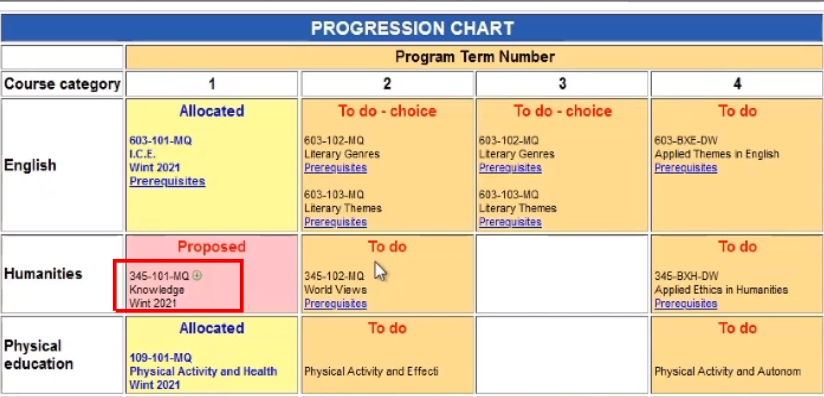
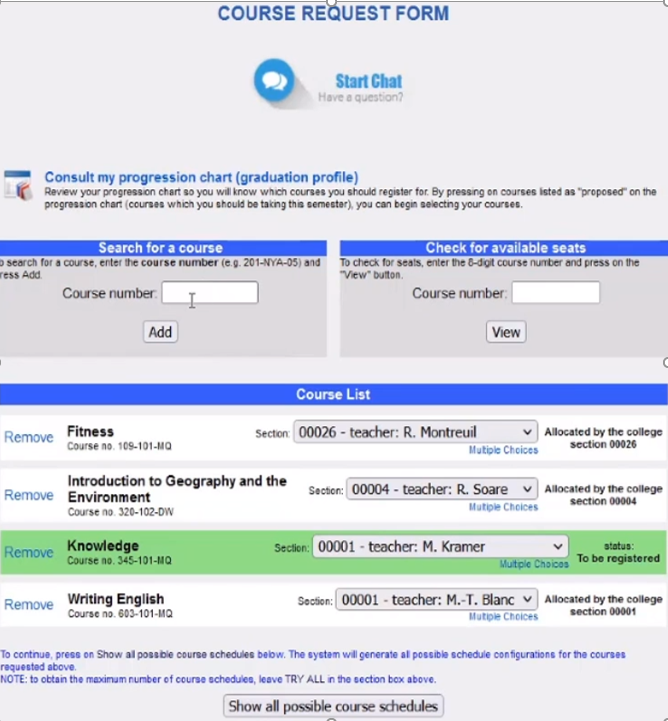
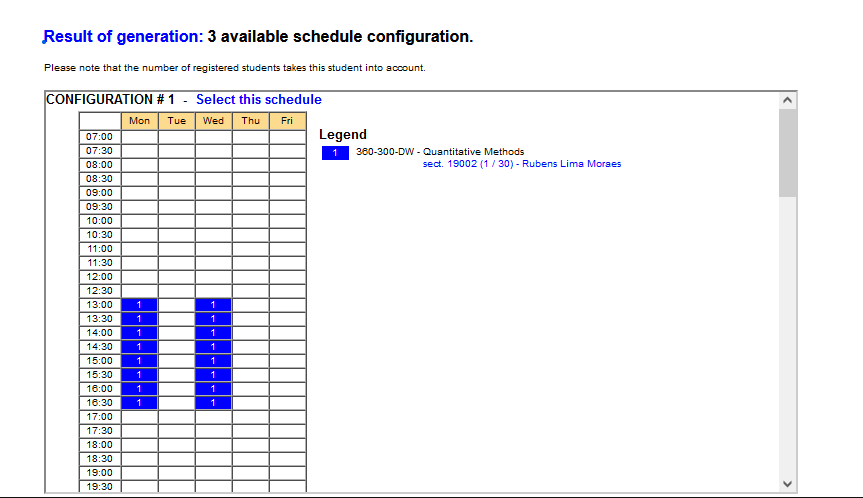
Continue adding one course at a time using the above steps.
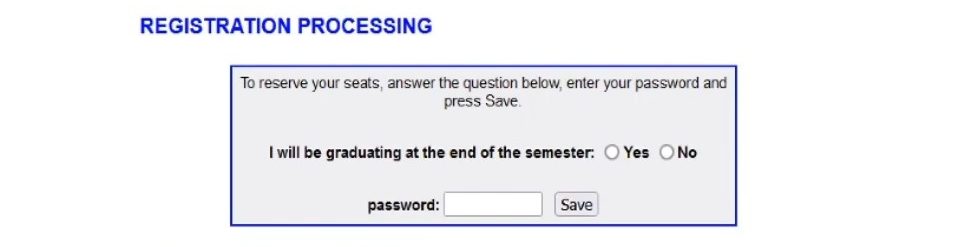
After adding each course make sure you put your password and save.
Adding Complementary Courses
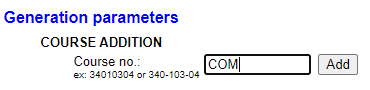
To add a complementary course and see all possible options type in COM in the search field as shown below
Finalize your Schedule
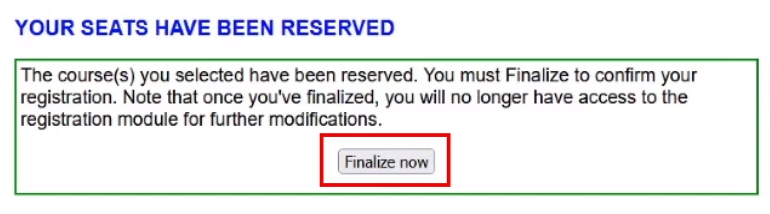
Once you have added all the course that are “proposed” to you be sure to finalize your schedule
- It is to your advantage to begin your registration at your earliest opportunity in order to have access to the widest course selection.
- You must finalize your registration, even if you are only taking courses that have been pre-registered for you by the college.
- Other student fees above the regular full-time day student fees, such as non-Quebec resident and foreign student fees, will be assessed during the week of July 6, 2026 and due by Wednesday, August 19, 2026. Part-time student fees and out-of-program fees will be assessed August 20, 2026.
- Students should check their statement of account in their MyDawson portal and their MIO messages on a regular basis.
AFTER FINALIZING YOUR REGISTRATION
Check Schedule in Omnivox
- Click Course Schedule: You can see all your registered courses.
- Your schedule must indicate “Finalized” in the upper right corner. (See below)

If it does not indicate “Finalized”, you are not registered.
- You must go back into Course Registration to complete your registration by clicking “Finalize now”.
If you’ve registered for an Intensive course
You will see the Intensive schedule at any point during the semester by going to My Dawson portal/My Omnivox Services/Course Schedule.
The system provides two ways to consult your schedule. If a conflict(s) appears, be sure to change the view to the weekly mode and browse through the semester to ensure that are no conflicts.
Please note: the College allows up to two individual conflicts within the semester but it is still your responsibility to advise your teachers and make arrangements if necessary.